Blog · · voca9 Team
Todoist vs Microsoft To Do: Which Task App Wins?
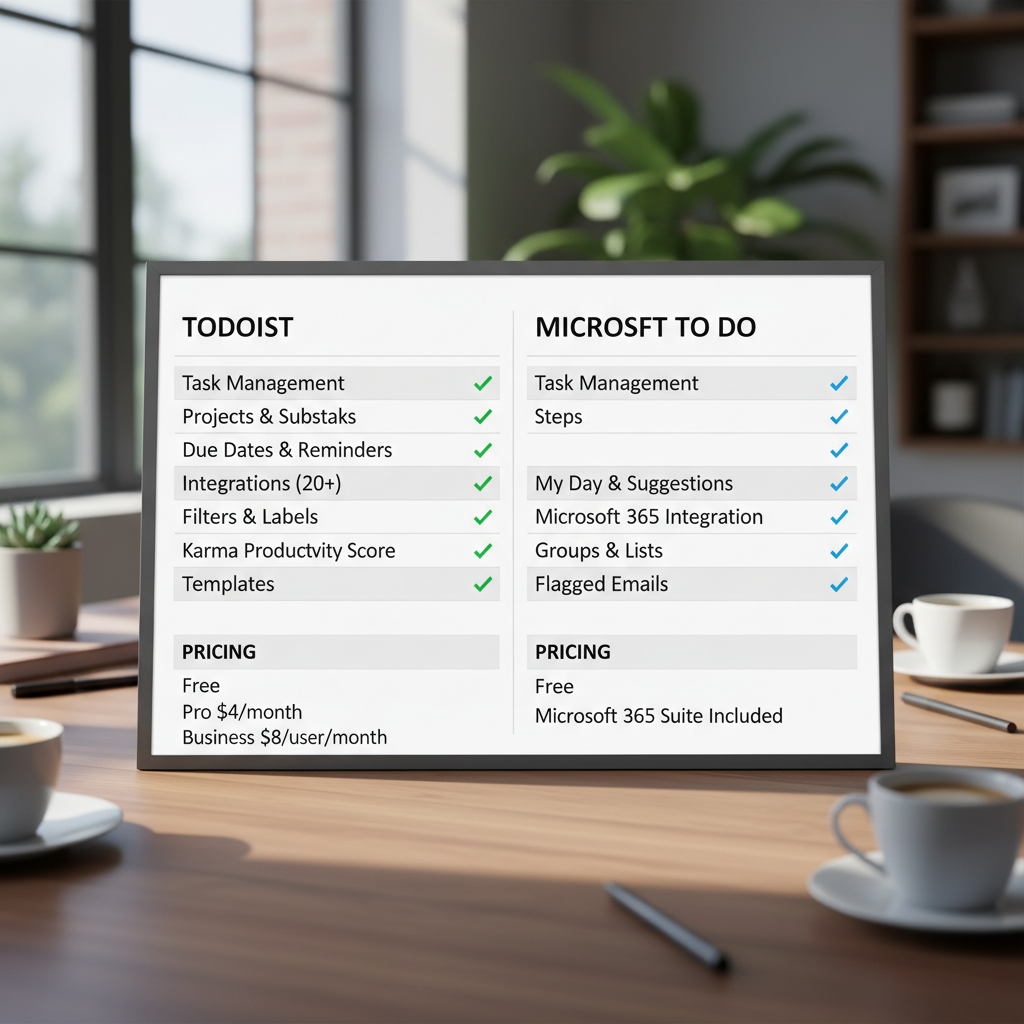
Todoist vs Microsoft To Do: Quick Verdict
Todoist suits power users who want depth and cross-platform flexibility. Microsoft To Do suits people who want free, simple lists that sit inside Microsoft 365 and Outlook. If you live in Outlook and Teams and only need straightforward lists, Microsoft To Do is enough. If you want filters, flexible recurring dates and strong third-party integrations, choose Todoist.
One caveat matters for anyone reading Microsoft To Do vs Todoist in 2026. There are reports that Microsoft plans to retire To Do in 2027. See the shutdown section below.
This article is a feature comparison based on each product's published documentation and general feature knowledge. Plans change, so confirm details on the official pages before you decide: Todoist pricing and Microsoft To Do.
Jump to: comparison table, pricing, recommendations.
Todoist vs Microsoft To Do at a Glance (Comparison Table)
| Criteria | Todoist | Microsoft To Do |
|---|---|---|
| Pricing | Free plan plus paid Pro and Business tiers | Free with a Microsoft account |
| Platforms | Web, Windows, Mac, iOS, Android, browser extensions | Web, Windows, iOS, Android, Mac |
| Natural language input | Extensive | Limited |
| Recurring tasks | Very flexible | Common patterns |
| Collaboration | Shared projects, assignments, comments | Shared lists, assignment |
| Integrations | Calendar, Slack, Gmail, Zapier and more | Outlook, Teams, Planner |
| Best for | Complex personal and team task systems | Simple lists in Microsoft 365 |
Choose Todoist if you want powerful capture, filters and integrations. Choose Microsoft To Do if you want a free, uncomplicated app tied to Outlook.
Features Compared Head to Head
The sections below compare each app's documented features and common user reports. They are not benchmark results.
Task Organization and Structure
Todoist uses projects, sections, sub-tasks, labels, filters, priorities, and list and board views. Microsoft To Do uses lists, list groups, steps, and smart views such as My Day, Planned and Important. It also shows tasks created from flagged Outlook emails.
Todoist scales better for complex work. Microsoft To Do stays simpler, which many people prefer. For a deeper look at structuring work, see our task management guide.
Natural Language Input and Quick Add

Todoist parses typed phrases like "every other Friday at 3pm #Work p1" into a recurring due date, a project and a priority. Another example is "Pay rent on the 1st every month", which becomes a monthly repeat.
Microsoft To Do's quick add is much more basic. You type the task title, then set the due date, reminder and repeat through menus. Typing "call Sam tomorrow" gives you a task with that exact title, not a task due tomorrow.
Recurring Tasks and Reminders
Todoist handles unusual recurrence rules, such as "every 3 weeks" or "last day of the month". Microsoft To Do covers daily, weekly, monthly and yearly repeats with custom intervals. Reminder availability in Todoist depends on your plan, so check the current plan details. For habits around alerts, see mastering reminders.
Collaboration and Sharing
Todoist offers shared projects, task assignments and comments. Microsoft To Do lets you share lists and assign tasks, and it connects to Planner and Teams for larger team work. Both suit small groups. Larger teams usually need a project tool beyond either app.
Integrations and Ecosystem Fit
Microsoft To Do works with Outlook, Teams, Planner and Microsoft 365, including tasks from flagged emails. Todoist connects to Google Calendar, Slack, Gmail, Zapier and many other tools. Todoist also has an Outlook add-in route, so it can work in a Microsoft setup, but the integration is less native.
Time-Blocking and Calendar Scheduling
Todoist offers calendar feeds and calendar integrations, and a typical workflow looks like this. Capture tasks in an inbox, give them due dates, then block time in your calendar. Microsoft To Do uses My Day as a daily shortlist, and your Outlook calendar holds the time blocks. Our time blocking guide explains the method.
Platform and Device Support

| Platform | Todoist | Microsoft To Do |
|---|---|---|
| Web | Yes | Yes |
| Windows | Yes | Yes |
| Mac | Yes | Yes |
| iOS and Android | Yes | Yes |
| Linux | Desktop app available | Web app only |
| Browser extensions | Yes | Limited |
Native Linux support is a gap for Microsoft To Do, so Linux users typically rely on the web app. Both work offline and sync once you reconnect.
Reliability and Sync Performance
Users generally report that both sync reliably. Common complaints in community discussions are delayed notifications, occasional sync glitches after reconnecting from offline use, and reminders that arrive late when a phone's battery saver is on. These are user reports rather than measured results, and they vary by device and operating system. If reminders matter to you, check notification permissions on your phone and use a short trial period with real tasks before committing.
Todoist Pricing vs Microsoft To Do Pricing
Microsoft To Do is free with a Microsoft account, and there is no separate paid tier for the app itself. Todoist has a Free plan with limits on things like project counts, plus paid Pro and Business tiers that unlock more projects, reminders and filters. Todoist changes its prices and limits from time to time, so no dollar amounts are listed here. The official Todoist pricing page shows the exact Free, Pro and Business prices and limits for your region.
| Todoist | Microsoft To Do | |
|---|---|---|
| Free | Yes, with limits on projects and some features | Yes, full app with a Microsoft account |
| Paid personal tier | Pro | None |
| Team tier | Business | Planner and Teams via Microsoft 365 |
If you want a free-to-start list built around speech, voca9 has a Free plan and Pro at $8 a month or $72 a year.
Ease of Use and Learning Curve
Microsoft To Do is quick to learn, and most people can start within minutes. Todoist asks for more setup, with labels, filters and priorities to decide on. That depth can feel heavy at first, but it pays off once your task list grows.
Pros and Cons of Each App
Todoist
– Pros: powerful quick add, flexible recurrence, strong integrations, wide platform support
– Cons: some features gated behind paid plans, steeper learning curve
Microsoft To Do
– Pros: free, simple, tight Outlook and Teams links, My Day focus
– Cons: limited natural language input, fewer organization tools, uncertain future
Which Should You Choose? Recommendations by Use Case
– Students: Microsoft To Do if your school uses Microsoft 365. Otherwise either works.
– Freelancers: Todoist, for flexible projects and integrations.
– Microsoft 365 teams: Microsoft To Do, plus Planner for shared work.
– GTD users: Todoist, for labels and filters.
– Families: Either works. Shared lists are easy in both.
For more options, see TickTick vs Todoist and Todoist vs Google Tasks.
Is Microsoft To Do Shutting Down?
Search results include reports that Microsoft will retire To Do in 2027, and Todoist has promoted similar claims in its marketing. No Microsoft page confirming this was found, so the status is:
– Verified: Microsoft To Do is available today and is listed on Microsoft's To Do site.
– Unverified: the 2027 retirement date reported by third parties, with no named Microsoft source.
– Unannounced: any official replacement or migration path from Microsoft.
This section reflects the situation as of 2026 and will be updated if Microsoft publishes an announcement. In the meantime, a practical step is to export or migrate your tasks early if the uncertainty concerns you, rather than waiting for a deadline.
How to Import Microsoft To Do Tasks into Todoist
Todoist's import options change, so confirm the current method in Todoist's help center before you start. A typical process looks like this:
1. Open the Todoist help center and search for the current Microsoft To Do import guide.
2. Sign in to Todoist and open Settings, then look for the Integrations or Import option that the guide describes.
3. Authorize access to your Microsoft account if the method asks for it, and choose the lists to bring over.
4. Run the import and wait for each list to appear as a project.
5. Open each project and compare it against the original list.
Titles, due dates and lists usually carry over. Steps, attachments, notes and recurrence may not.
Troubleshooting:
– If lists are missing, confirm you signed in to the right Microsoft account.
– If the import stalls, retry with fewer lists at a time.
– If dates look wrong, check your time zone in both apps.
Post-import cleanup checklist: rebuild recurring tasks, re-add notes and attachments, split steps into sub-tasks, add labels and priorities, and delete duplicates.
Microsoft To Do Alternatives and Other Options
Looking for the best to-do list app or a Microsoft To Do alternative? Consider:
– TickTick: feature-rich, with a built-in calendar and timer
– Things: polished, for Apple users
– Google Tasks: minimal, for Gmail users
– Notion: flexible databases, see Todoist vs Notion
– ClickUp: broader project management
– Microsoft Planner: team plans inside Microsoft 365
– voca9: a personal list you add to by voice or typing
More choices are in our Todoist alternatives list.
What Users Say: Reviews and Ratings
Current scores from the App Store, Google Play, G2 and Capterra change often, so check each listing for up-to-date numbers and dates.
The themes in forums such as Reddit and Quora are consistent:
– Todoist praise: fast quick add, flexible recurring dates, clean design across devices.
– Todoist complaints: limits on the Free plan and the price of upgrading.
– Microsoft To Do praise: simplicity, no cost, and My Day for daily focus.
– Microsoft To Do complaints: missing features such as richer natural language input and filters, and uncertainty about its future.
Final Verdict
Pick Todoist for depth, integrations and flexible capture. Pick Microsoft To Do for free, simple lists in a Microsoft setup, and keep an eye on its roadmap. Both are reasonable for basic lists.
You can try either one at no cost: Todoist has a Free plan, and Microsoft To Do is free with a Microsoft account. This article contains no affiliate links.
FAQ
Is Todoist better than Microsoft To Do?
It is better for complex workflows. Microsoft To Do is better for simple, free lists in Microsoft 365.
Is Microsoft To Do free?
Yes, it is free with a Microsoft account.
Can I import Microsoft To Do into Todoist?
Yes, in many cases. Todoist import from Microsoft To Do should be checked against Todoist's current help guide, since some details won't transfer.
Is Microsoft To Do shutting down?
There are reports of a 2027 retirement that could not be confirmed with a Microsoft source. Check Microsoft's official announcements.
What is the best Microsoft To Do alternative?
Todoist and TickTick are common choices. Your pick depends on your platform and budget.
Does Todoist work with Outlook?
Todoist can connect with Outlook through add-ins and automation tools, though not as natively as Microsoft To Do.
If typing tasks into any of these apps feels slow, voca9 lets you say a task and files it with the date, time and reminder. It is Free to start.
See voca9 pricingUpdated